
This guide explains how to find hearing reports, evidence and other hearing-related documents for hearings held from January 2026.
Find a hearing
1. Go to the ‘Hearings' website.
2. Go to 'Current Hearings'.
This guide explains how to find hearing reports, evidence and other hearing-related documents for hearings held from January 2026.
1. Go to the ‘Hearings' website.
2. Go to 'Current Hearings'.

The 'Current Hearings’ tab shows dates, times and venues for hearings being held for up to the next three months.
3. Use the drop-down arrow in the 'Filter Hearings Types' box and choose the type of hearing you are interested in.
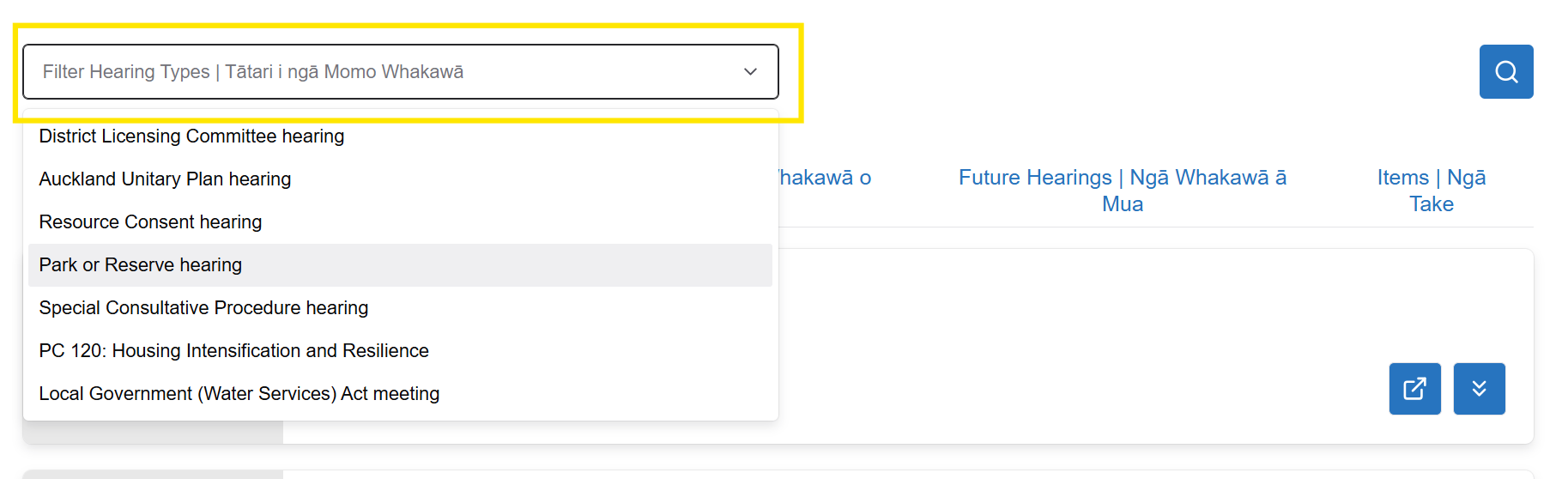
This will list all the hearings of this type for up to the next three months.
You can select more than one hearing type at the same time.
To clear the search, click the ‘x’ on the right of the search box.
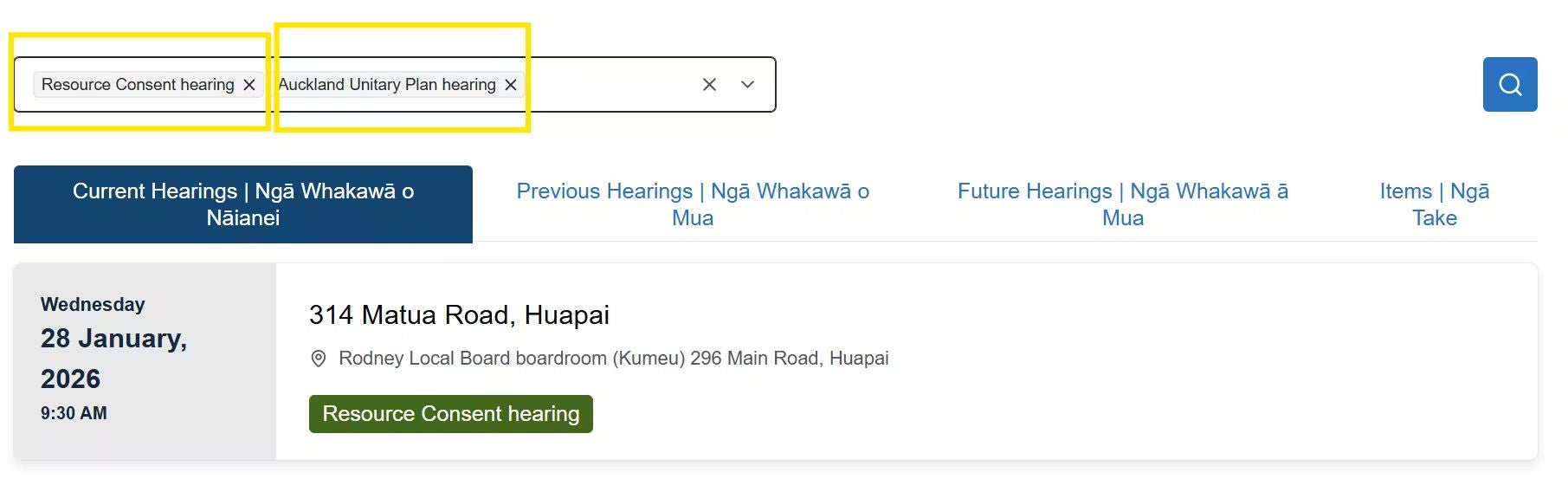
4. Select the hearing you are interested in from the search results. This will display the date, time and venue for that hearing and an option to 'Open Meeting'. This is where you can find hearing documents.
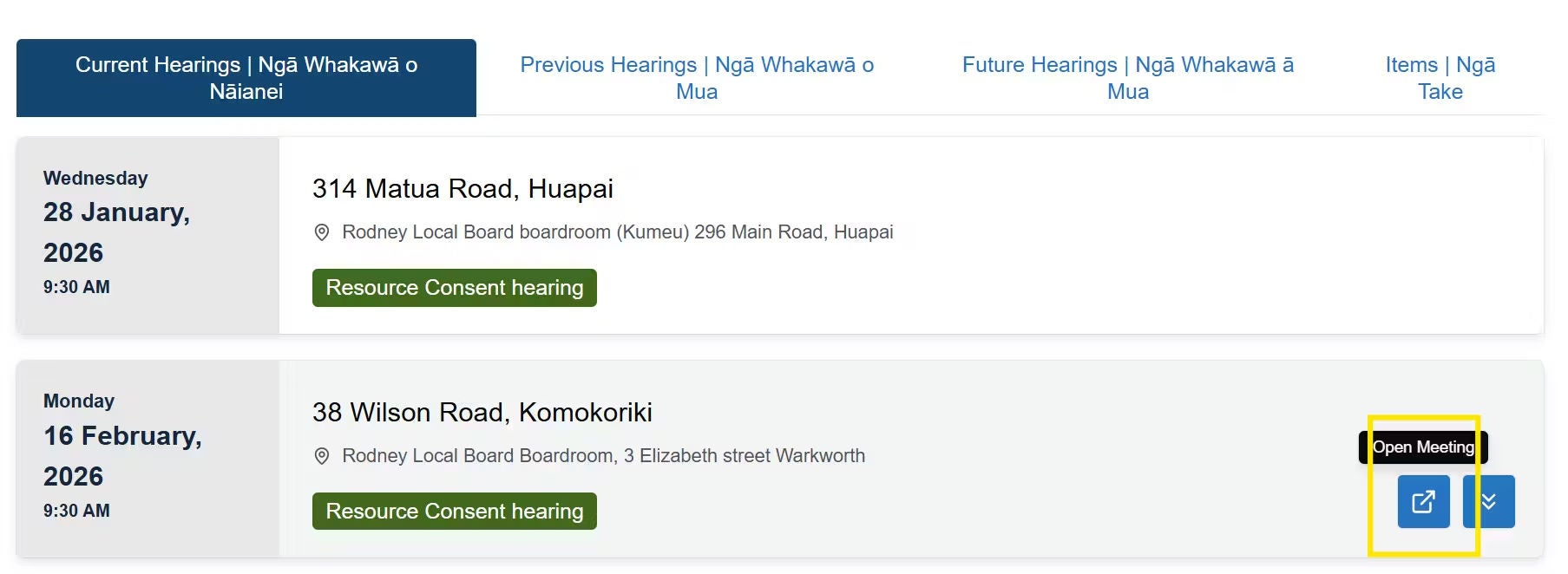
When you find the hearing you are interested in, you can access documents related to that hearing.
1. Select 'Open Meeting' on the far right of the screen to access the hearing report and other hearing documents.

This will open the hearing.
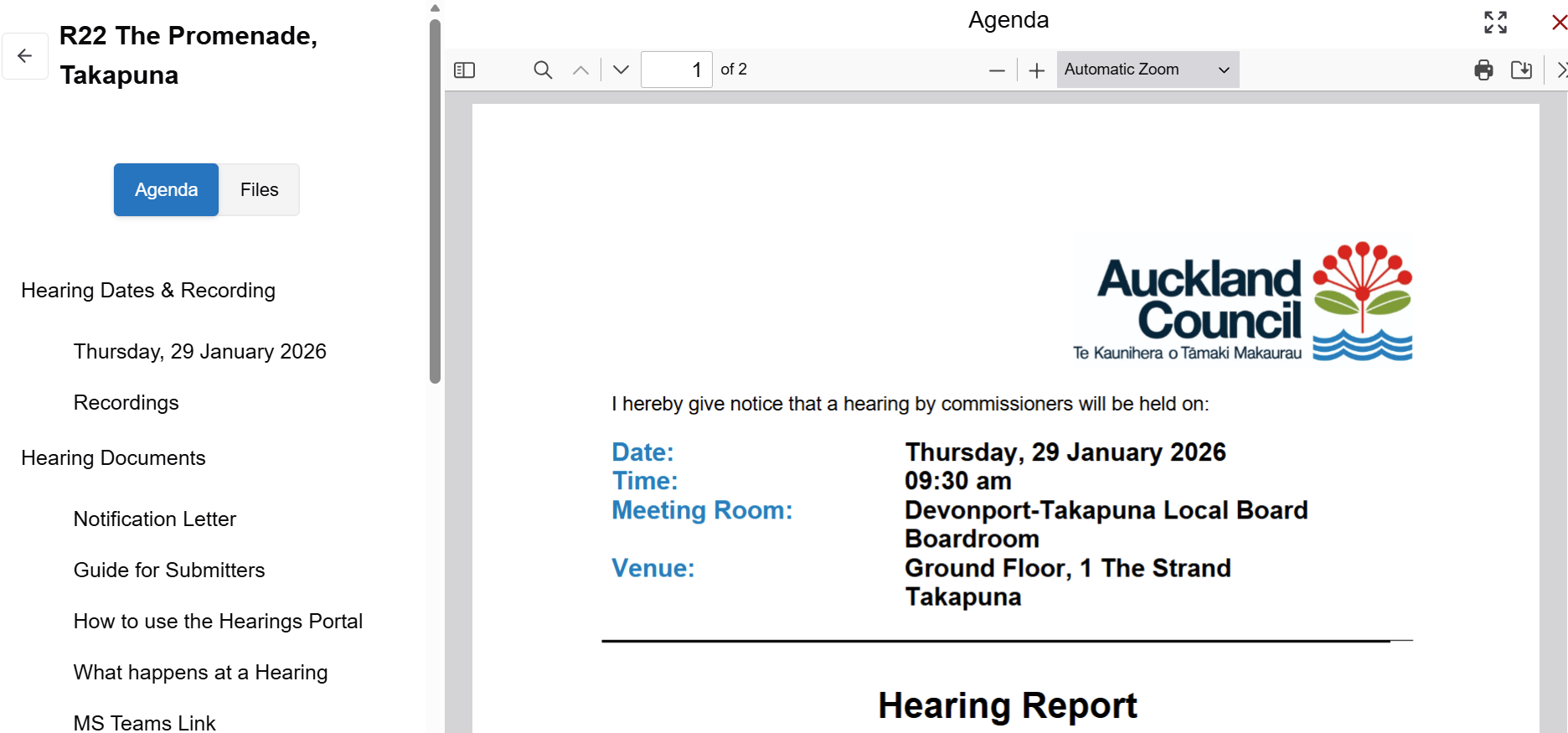
Under the Agenda button, select an agenda item or heading from the navigation pane on the left side of the page. This will display the relevant documents on the right side of the screen.
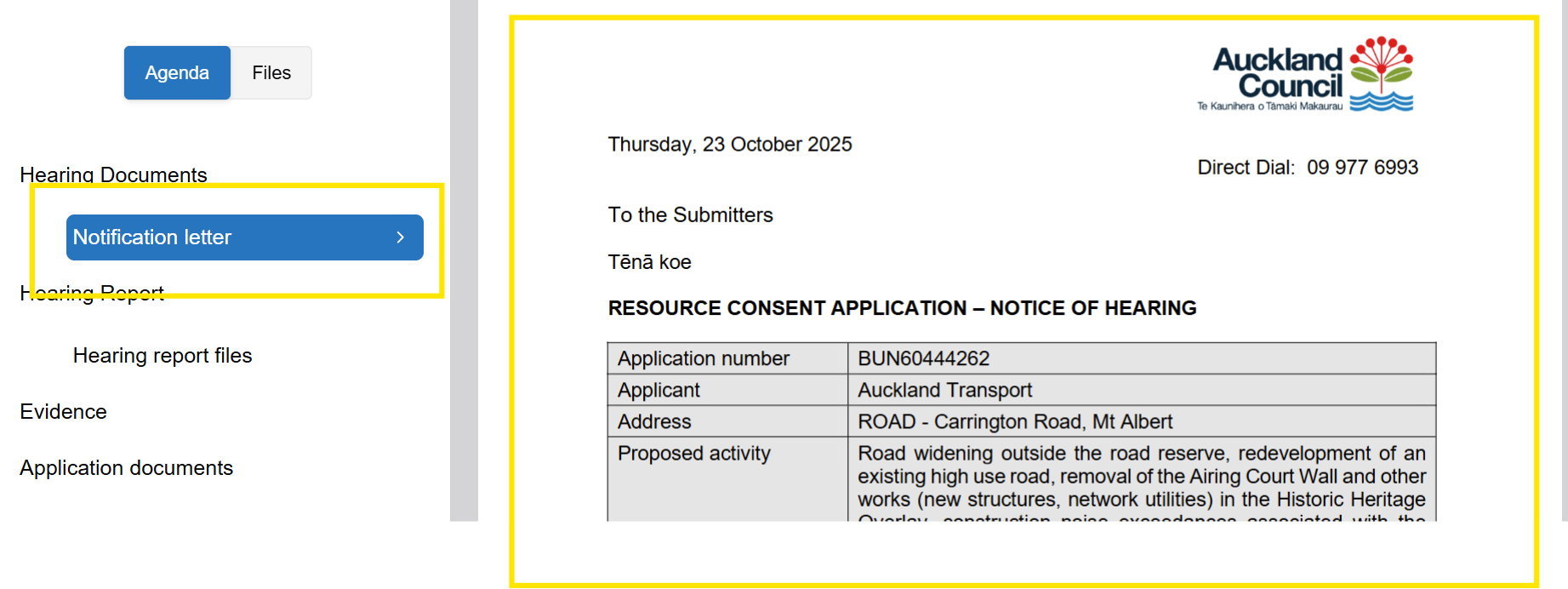
Any additional related documents will display in a list the first time you select a heading – if that section includes more than one related document.
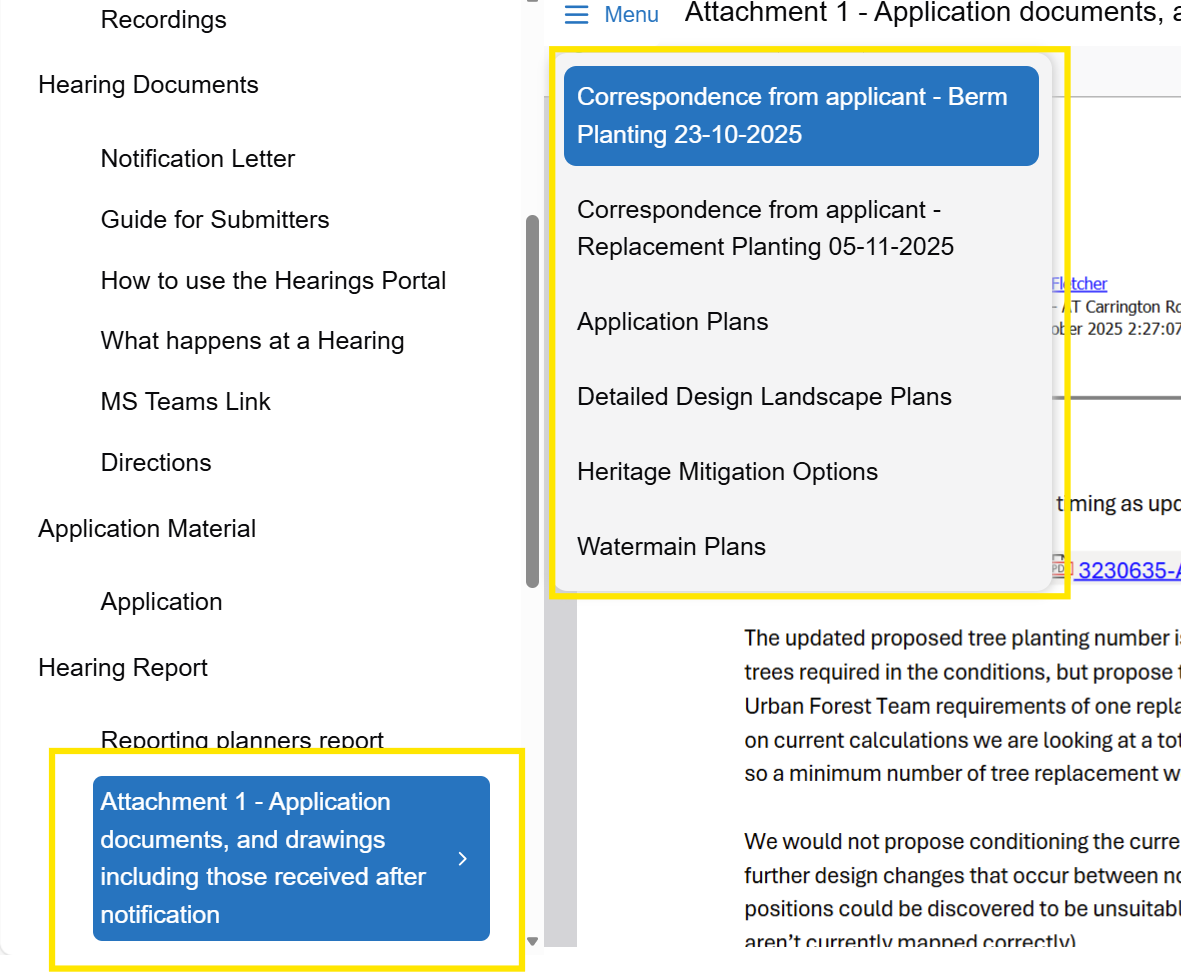
Select the document you want to read and it will display on the right side of the screen.
To remove the list of related documents, click on the 'Menu' tab.
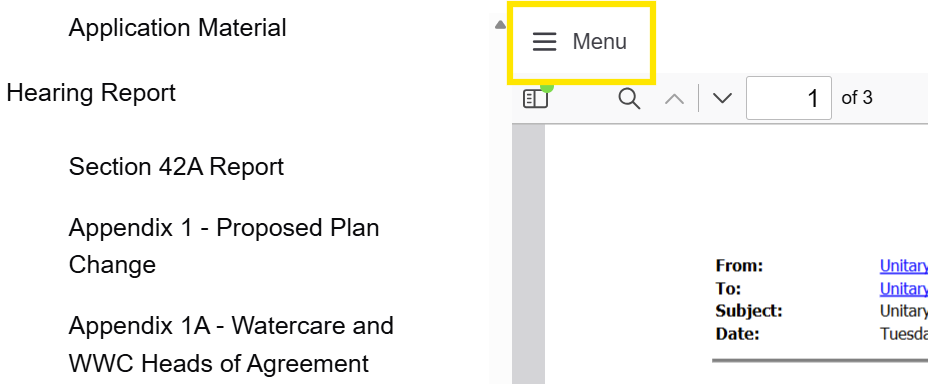
Click on the 'Menu' tab at any time to check for other related documents under each heading listed on the left of the page.
Select 'Files' to access specific hearing reports and documents. Select the document you want to read from the list on the left of the screen. The document will display in full on the right of the screen.
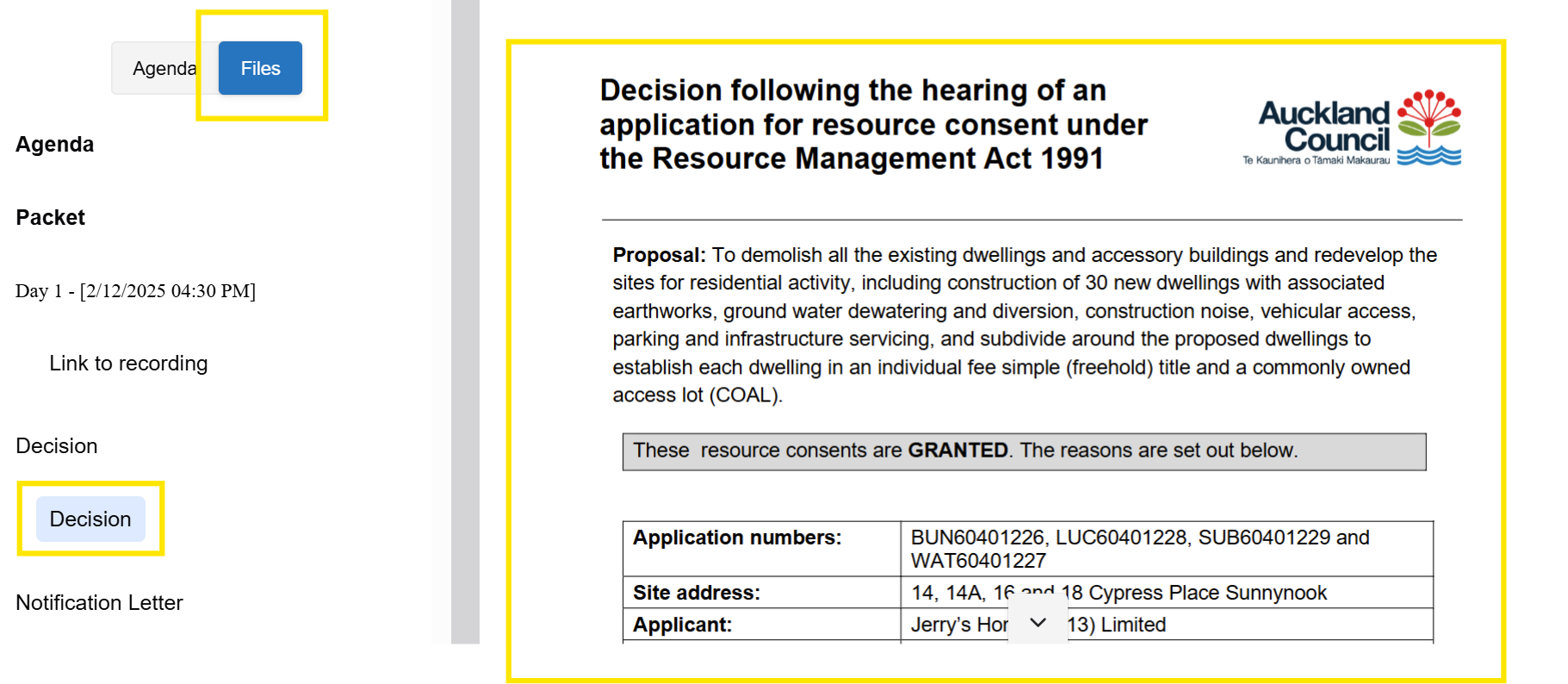
To find a specific document, like a statement of evidence from a particular person or a specific submission:
1. Open the hearing.
2. Select 'Files'.
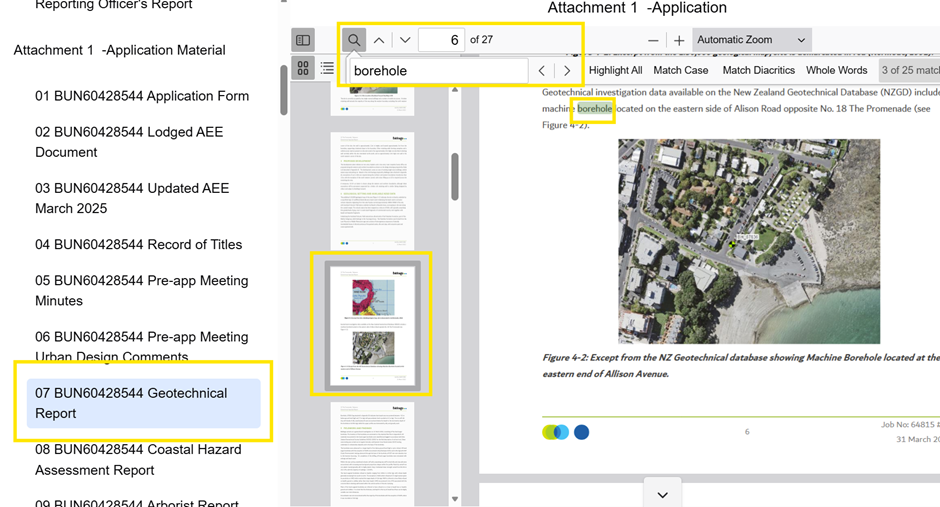
3. Use the 'Control and F' function. In the pop-up box, enter key words such as the name of the person who filed the statement of evidence you are looking for.
4. All documents with that name or words in the title will appear.
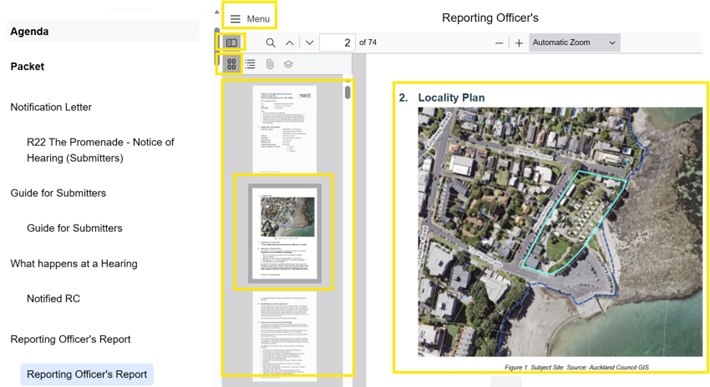
If a document has bookmarks, you can use them to navigate through the document.
1. Click on ‘Toggle Sidebar’ to reveal the bookmarked sections of the document.
2. You can select ‘Thumbnails’ to display the bookmarked sections as a list of images.
3. Select the section you are interested in and it will display on the right of the screen.
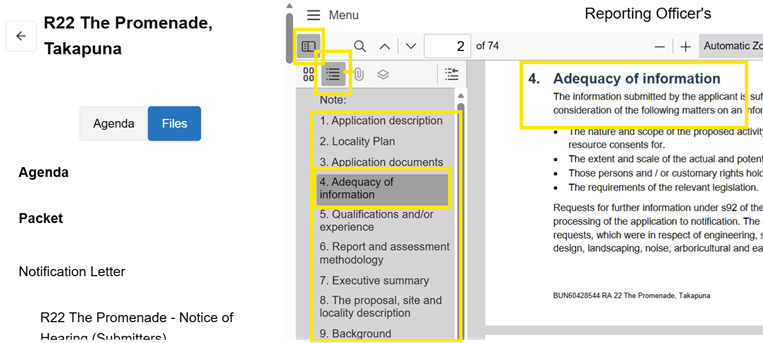
4. You can also select ‘Document outline’ to display the sections in a text list.
You can also search for hearing documents under the 'Items' tab on the homepage.

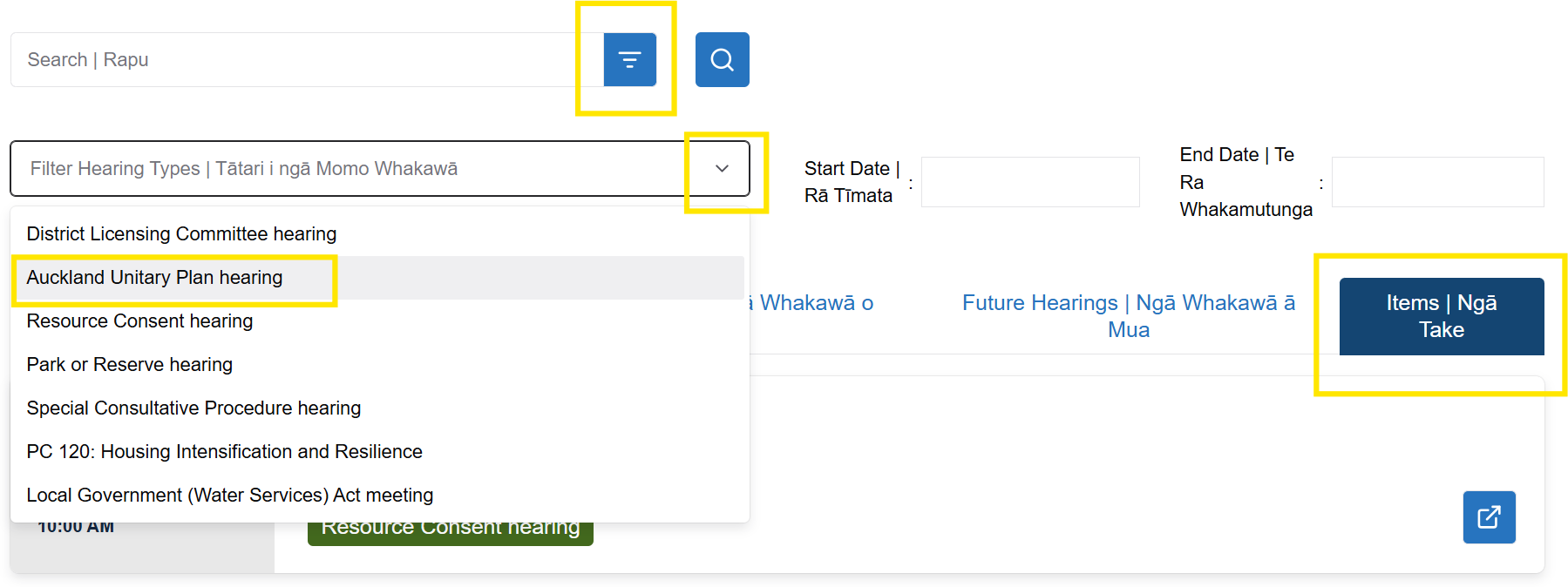
1. Select 'Items' at the far right of the screen.
2. Click on the icon at the end of the search bar.
3. Click on the drop-down arrow in the 'Filter hearing types' box.
4. Select the hearing type you are interested in.
Documents for this hearing will display if they are available.
Click the 'Open Meeting' button on the document you want to access.
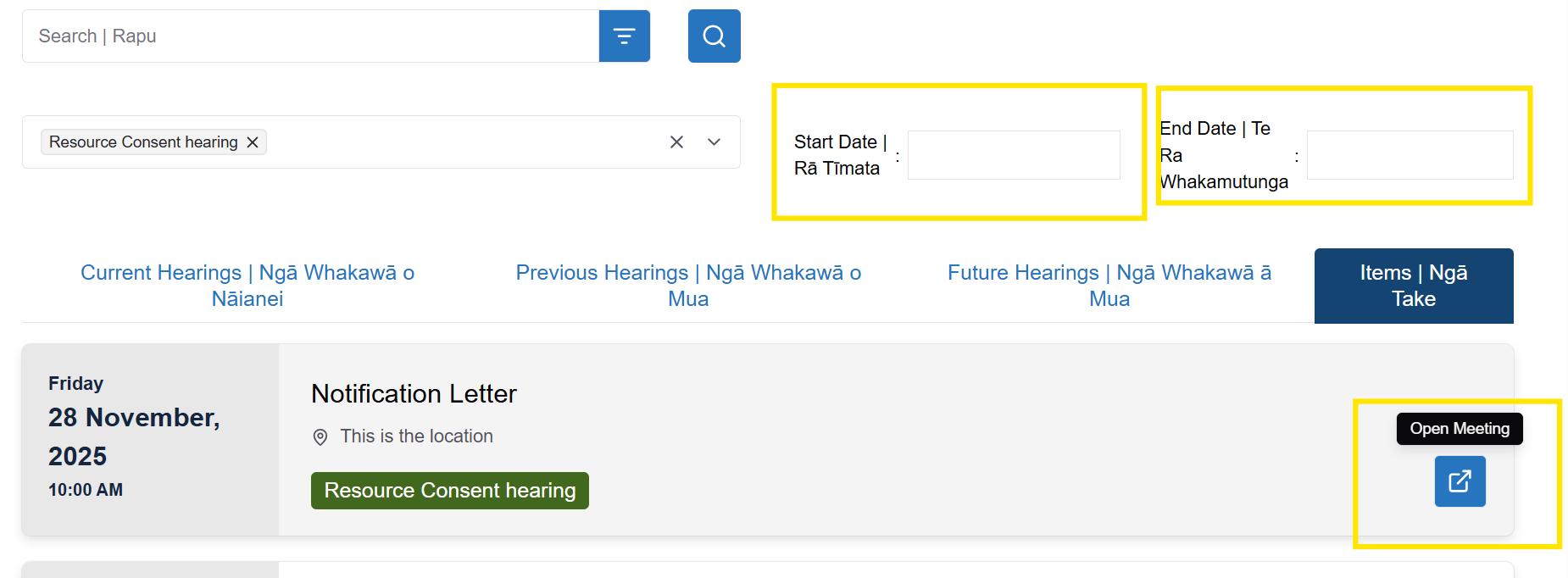
You can also use the 'Start Date' and 'End Date' boxes to narrow your document search.
1. Open the relevant hearing from the homepage.
2. Select a heading from the navigation pane on the left of the screen.
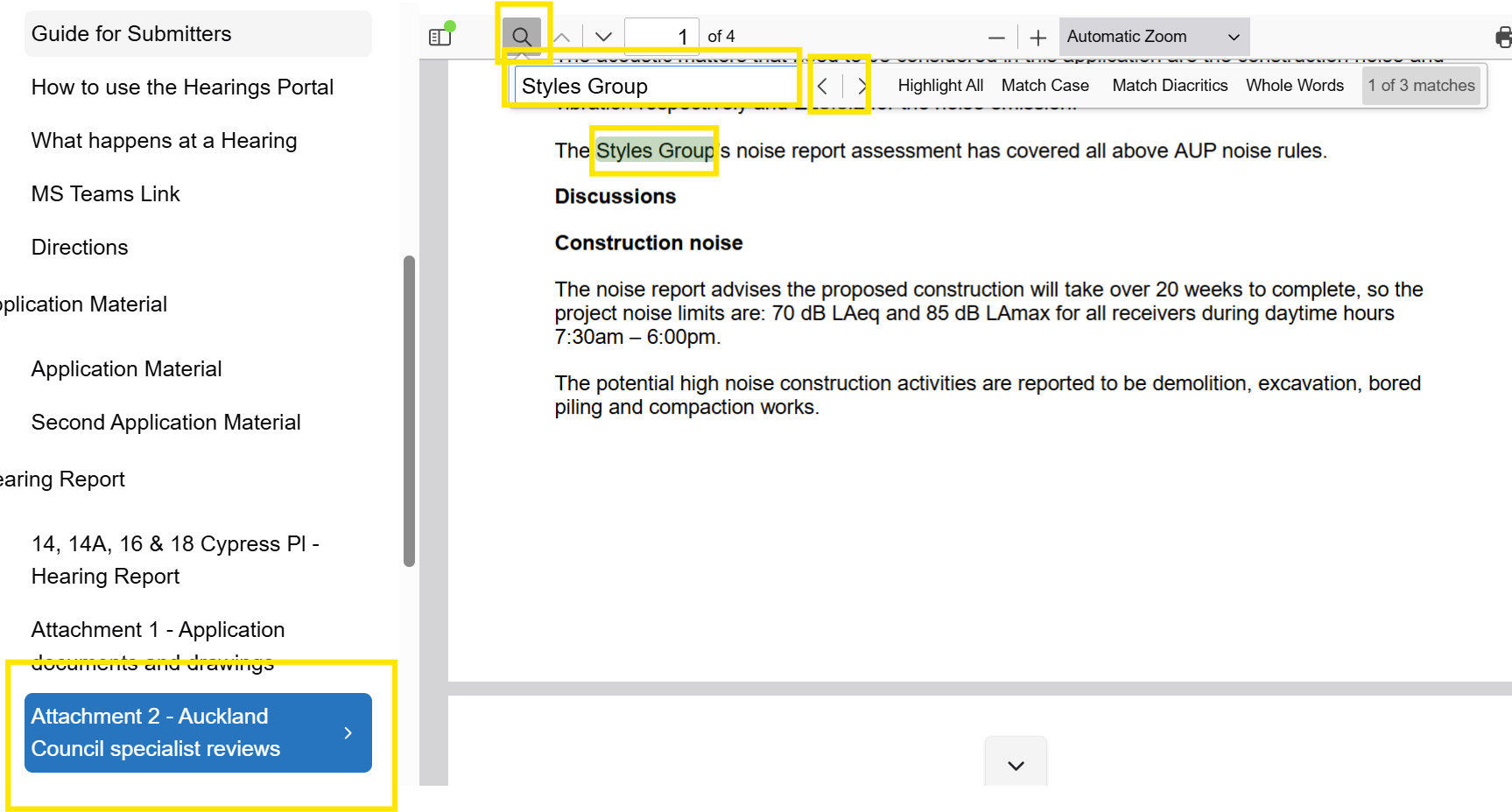
3. Click on the magnifying glass.
4. Type the word you are looking for. The display bar will tell you how many times that word appears.
5. Use the arrows to find each mention of that word.
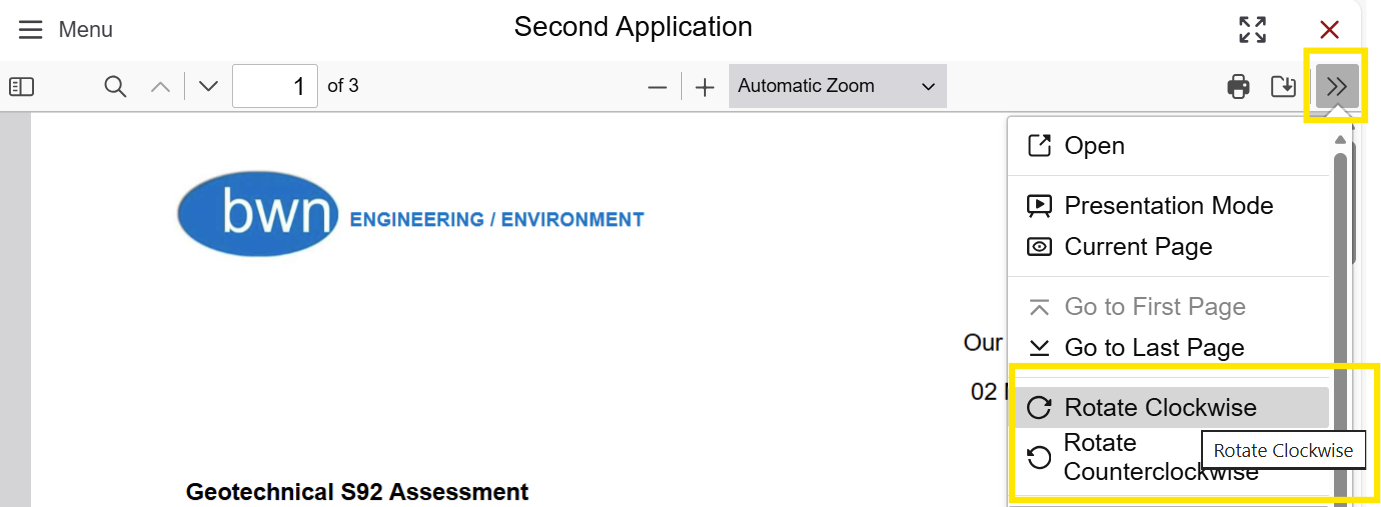
You can rotate documents using the ‘Tools’ icon on the right side of the screen. The entire document you are viewing will rotate.
You can download each individual document and save it to your mobile phone, tablet, laptop or computer. Open it with Adobe Reader (not your browser).
You can also print it directly from the Hearings website.
1. To download the document, click on the ‘Save’ icon on the top right-hand side.

2. To print, click on the ‘Print’ icon.

The 'packet' includes all hearing reports and documents in a single PDF document.
It may take a minute for the packet to load.
You can save the PDF to your mobile phone, tablet, laptop or computer. Open it with Adobe Reader (not your browser) and select links to navigate through it.
You can also download and print it.
To access the packet:
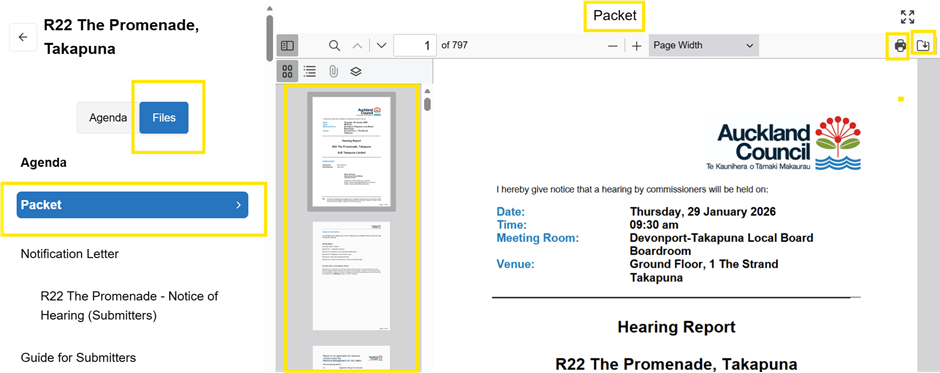
1. Select 'Files'.
2. Select 'Packet'. This shows a list of all documents included in the PDF.
3. Select 'print' or 'save'.
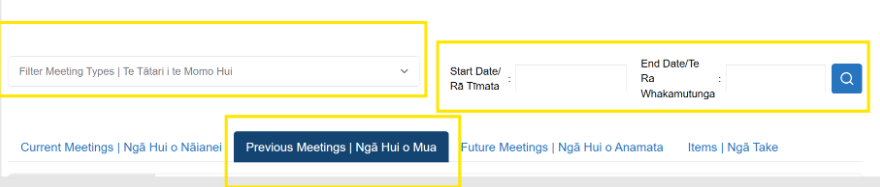
The 'Previous Hearings' tab displays past hearings.
After a hearing ends, it moves from 'Upcoming Hearings' to 'Previous Hearings'.
Hearings are added to this section as they happen.
If you search all past hearings, it will display the most recent hearing first.
1. Select 'Filter Hearing Types' and select the type of hearing you are interested in.
2. Choose a hearing to find the documents and recordings for that hearing.
3. Enter the start date and end date to narrow your search.
When you select a filter, the display will update to show the documents for those dates.
Visit Find a hearing held between 2023 and 2025 for hearing details and documents held during this time.
Email records@aucklandcouncil.govt.nz for hearings held before 2023.
If you are looking for a hearing that is more than three months away, it could be under the ‘Future hearings’ tab.
